Open cpcpcbcb.com, register, then write one piece of text and one image into the editor — about two minutes.
Prerequisites
- A browser (desktop or phone)
- A real email address (disposable domains are blocked)
- Optional: text or an image already on your system clipboard
Steps
Open the site
In your browser, go to:
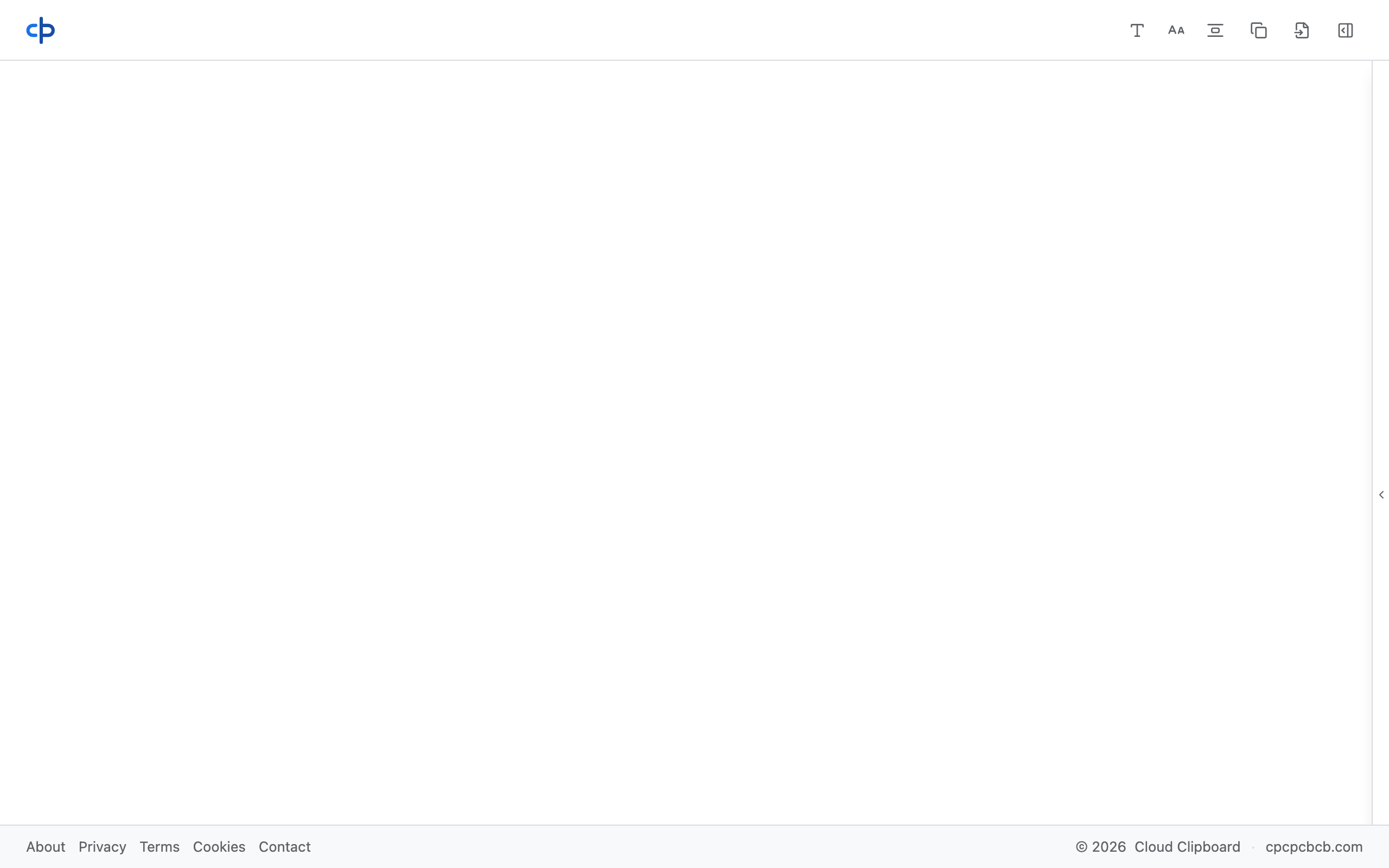
https://cpcpcbcb.comWhen it loads, you’ll see an empty editor, Copy / Paste in the top bar, and a thin sidebar rail on the right.
Open the sidebar and register
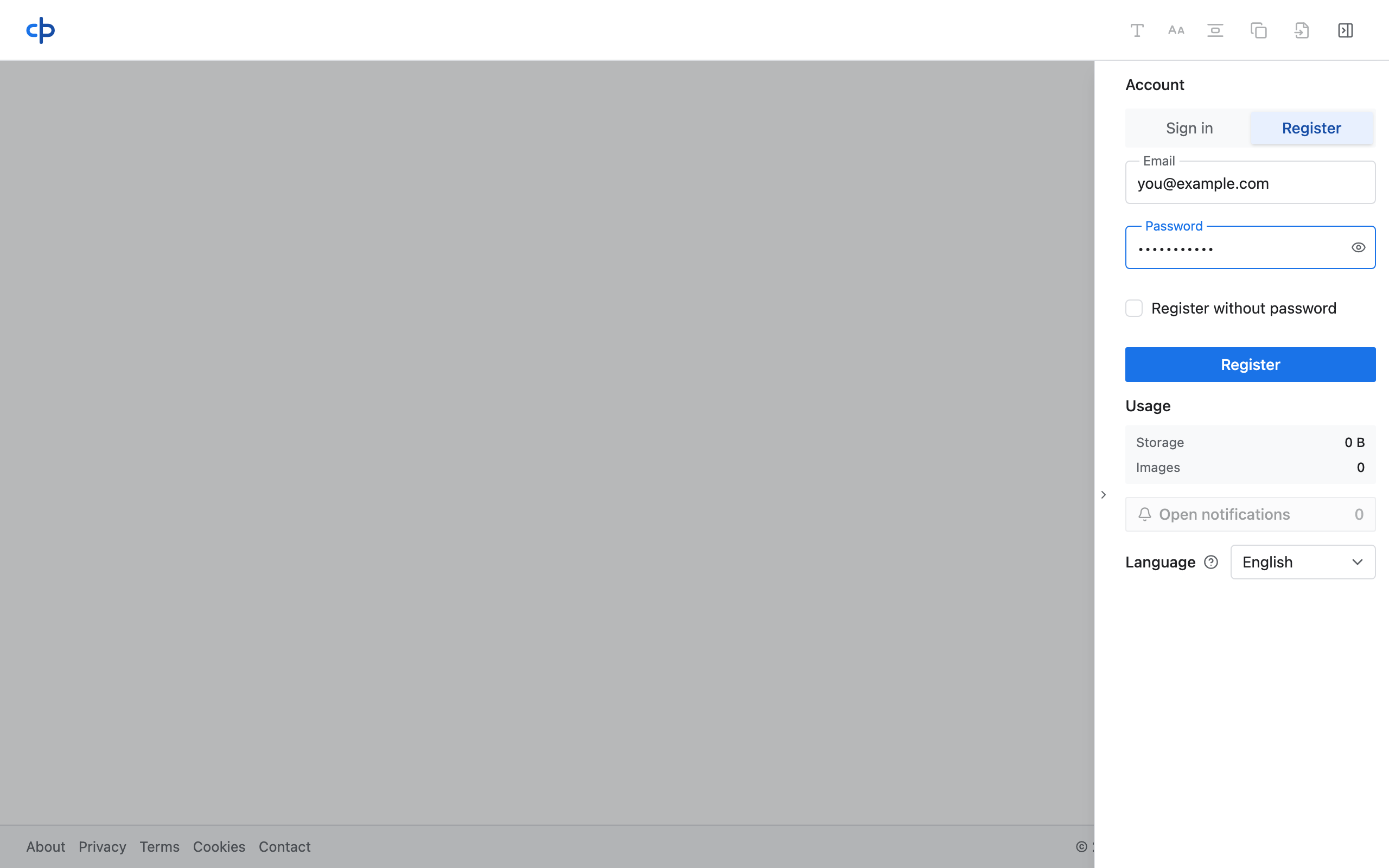
Click the sidebar button at the far right of the top bar (or the right-edge rail) to open Account, then switch to Register.
- Enter your address in Email, for example
<you@example.com> - Set a Password of at least 8 characters (leave Register without password unchecked)
- Click the blue Register button
After success, the sidebar shows your email and you’re signed in on this device.
To skip setting a password: check Register without password, then register. To sign in on another device later, use Forgot password first to set one.
Add text and an image
Collapse the sidebar and click into the editor:
- Type some text, for example
Hello from Cloud Clipboard - Paste an image from your system clipboard: on desktop use top-bar Paste, or
Ctrl/⌘+V; on phone use Paste / Insert image in the edit menu
You should see
Your text appears in the editor, with the image below it. In the sidebar Usage section, storage and image counts are greater than zero.
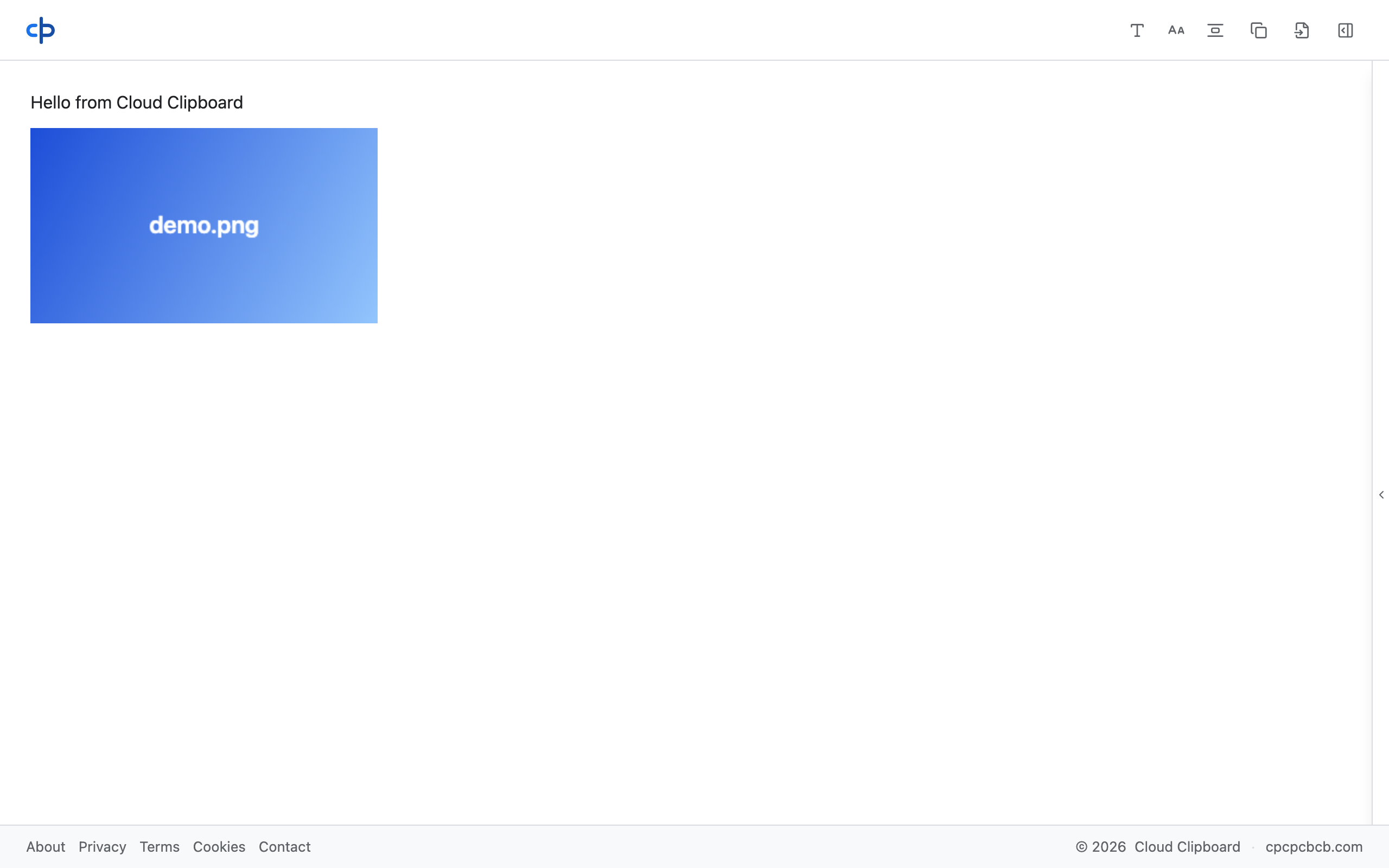
Hello from Cloud Clipboard
[image below the text]
Account sidebar: <you@example.com>
Usage · Storage: <n> B (or KiB)
Usage · Images: 1
You created a session with a real email and wrote content into that account’s cloud clipboard. On another device, open the same site while signed in to the same account to view and copy it.
Next step
Open cpcpcbcb.com on a second device, sign in with the same email, and confirm the text and image synced over.